UTV2004 - UnrealTV for UT2004
Release 1.00b19 Public Beta (c) 2002-2004, Epic Games 
developed by Robin Westberg & Stefan Johansson


Description
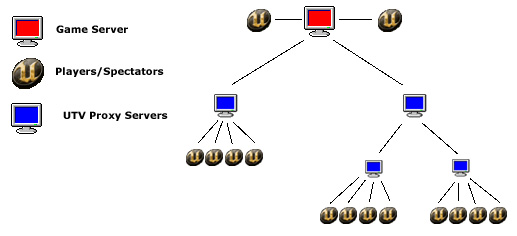
UTV 2004 is a modification for Unreal Tournament 2004  that allows live matches to be re-broadcasted via multiple spectator servers.  If someone has a UT2004 server that he expects a lot of spectators to he can setup a UTV proxy on another machine and connect it to the game server. Then the spectators can join the UTV proxy instead of the game server. If he expects a really big crowd he can also connect additional proxies to the first one that spectators can then connect to.  By chaining off proxies servers, CPU load and bandwidth requirements can be moved from the game server to an unlimited number of proxies.


An UTV proxy connected directly to the game server (not chained) will need a primary client who will act as an administrator for the server.  This client views the match in real time and has the same bandwidth/cpu load as a normal spectator.  The proxy can work in two different visibility modes. In normal mode the server will only send the data that is visible from the primary clients pov and the other spectators will be locked to that one. In SeeAll mode the server will send all data in the level and the spectators are free to roam as they which, this come at a price of increased bandwith usage (See also below for a required mutator on the game server).  The following diagram outlines how UTV2004 works:


Installation - UTV Proxy Server
The UTV proxy server needs to have a full copy or a dedicated server installation of UT2004 version 3323 installed.  Because UTV works closely with the underlying network code of UT2004, it's version specific.  To install, move the following files from the .ZIP archive to the \System directory:
  • UTV2004C7.U (uscript package)
  • UTV2004.dll (the main DLL)
  • UTV2004.int (localization information)
  • UTV.ini (configuration file)

Step 1: Copy the above 4 files in to your \System directory.

Step 2: Open your UTV.ini in a text editor

Step 3: Configure (see below for the various options)


Installation - UT2004 Game Server
If you do not plan on using the "SeeAll" option of UTV (see Options below), then you do not need to install anything on the game server.  However, if you want that option available, follow the following steps.
  • UTV2004S4.U (SeeAll uscript package)
  • UTV2004S4.int (SeeAll localization information)

Step 1: Copy the above 2 files in to your \System directory of your game server

Step 2: Open up your UT2004.INI file (or your server's equivalent) and add the following like to the section [Eninge.GameEngine] (anywhere in that section will do)...

           ServerPackages=UTV2004S4

Step 3: Add "mutator=?UTV2004S4.utvMutator" to your server's command line (or select it from the menus).

Step 4: Restart the game server

The mutator is not compatible with other mods and mutators that replace the PlayerController. This includes mods such as TTM and UTComp. To get around this problem, these two mods have the SeeAll functionality built in. However, SeeAll has changed to allow transmission of ViewRotation, which means that the included SeeAll code in TTM and UTComp can not be used. If/when they update their code, it will work without this mutator again. Until that time, UTV2004S4 can be used together with TTM/UTComp on the game server to get SeeAll working.


About patch version compatibility

Everyone that wants to watch a broadcast must have the same or newer version of UT2004 as the primary client. So if you want 3186 clients to be able to watch a broadcast, make sure that the primary client doesn't have the 3204 patch installed. (More specificially, required version for watchers = minimum of primary + gameserver version.)

However, the UTV server should be run from an installation of version 3323, since the DLL was built against that version. Running it with other versions will most likely trigger crashes or weird behaviour.


Options

UTV2004 options are configured in the UTV.INI file located in your \System directory (see Installation - UTV Proxy Server above).  Below are a list of available options.  You will want to configure your proxy before using it. 

Keyword Description Default value
ServerAddress This is the IP address of the game server that the proxy will connect to or the address of the host proxy this proxy will chain from.  
ServerPort This is the port of the game server that the proxy will connect to  
ListenPort This is the port on which the proxy will listen for clients.  Clients will need to include this port number when they attempt to connect to your proxy.  So for example, if your proxy is running with an IP address of 10.1.1.1 and you set the listen port to 7780 then a player would have to use the following open command:

open 10.1.1.1:7780 

7780
RemoteControlPort The proxy can be controlled remote by means of connecting to this port and communicating using the rcon protocol. For an application that uses this, you can download UTVRemote 0.92, and sourcecode for Delphi 6 is also available. 7782
Delay UTV2004 will delay the proxy data by the # of seconds equal to this value.  This is useful for keeping people from using the rebroadcast to cheat during a match. 30
DelayPrimaryVoice When this option is enabled (set to 1) any voice transmissions from the primary client will be delayed along with the game information. This allows the primary client to broadcast voice that is synced with the game that spectators see, sort of like an in-game shoutcast. 1
JoinPassword This option defines any password that might be needed to connect to the game server.    
PrimaryPassword This option defines the password that will be used to identify the primary client when he connects to the proxy server.  Even if you are running a public spectator proxy, you will want to password protect the primary client.  
VipPassword Connecting with this password allows clients to override the MaxClients value and connect even if the server would normally tell clients that the server is full. Can be used to guarantee that chained proxys always gets a slot. Clients that connect with this password are also allowed to transmit voice chat that other spectators will hear.  
NormalPassword If you set the NormalPassword option, anyone trying to connect to your proxy to view a match will be required to include the password.  
MaxClients This option defines the maximum number of spectators who will be able to use your proxy.  Keep in mind that it includes the primary client. 50
SeeAll When this option is enabled (set to 1) you will enable "See All" mode on the proxy.  Two important things happen when this is enabled.  Spectators using the proxy will have the ability to see everything happening in the world.  The downside to using "See All" is that all connections will require more bandwidth and slightly more CPU usage as all the player data is being sent.

If you decide to use the "See All" option, you will need to install the UTV2004 See all mutator on your server and include it in your list of mutators.  See "Installation - UT2004 Game Server" above.

0
NoPrimary When this option is enabled (set to 1) the utv proxy will connect to the game server by itself, without needing a primary client. To use it, SeeAll must also be enabled. Could be used for unsupervised broadcasts. 0
ClockInterval When this value is set to something higher than 0, cpu usage statistics will be output to the server console every <clockinterval> seconds. 0
TickRate Specifies the tickrate used by the UTV server. Should not have much impact on the server cpu usage. 30
FlushThreshold This is an experimental setting that aims at improving performance with large number of watchers. After sending this number of bytes per tick, the server will run an extra tick on the netdriver. 5000
IgnoreChainedChat When this option is enabled (set to 1) the proxy will ignore chat messages coming from chained proxys. Could be useful when there is a very large amount of watchers to reduce chat spam. 0
DLManagerCount UTV2004 includes it's own redirect download system.  This option defines how many Download managers you have entered in the configuration file. The original idea was that the utv proxy would use the redirects to be able to download things fast from servers it connects to, even if that server has not defined any redirect. Then it was added that the proxy will also tell clients connecting about these redirects so that they too can get fast downloads of custom stuff. 2
DLManager[0..?] These define URL links to your download sites.  You should have DLManagerCount # of these entries.  

UTV2004 also allows connecting the proxy to the master server. The settings are configured in a separate section [MasterServer] in the UTV.ini file

Keyword Description Default value
ConnectToMaster When this option is enabled (set to true) the proxy will connect to the Epic masterserver. true
ReplyToQueries When this option is enabled (set to true) the proxy will reply to server status queries even if ConnectToMaster is false. Useful to allow clients to add an UTV server to their favorites and see if a game is going on, even if master server connecting is not desired. true
ServerName The server name that can be seen from the server browser  
AdminName The admin name that can be seen from the server browser  
AdminEmail The admin email that can be seen from the server browser  


Launching a UTV2004 Proxy Server
UTV2004 runs as a UCC commandlet.  Once it's installed (see Installation - UTV Proxy Server above) and configured (see Options above) then you only need to execute the command "ucc utv".  At that point, UTV2004 will load and connect to the game server.


Connecting to a UTV2004 server
Unfortunately, at this time UTV proxy servers do not appear in the server browser.  They can however be added manually to the favorites section. This usually means that clients will need to manually connect to your server using the open command at the console, or by launching UT2004 with the ip and port as the command line parameters.  For example, if your proxy server is running at 10.1.1.1 at port 7780 they can use any of the following:

typing "open 10.1.1.1:7780" at the console
launching UT2004 with the command "ut2004 10.1.1.1:7780"


Controlling the Proxy from the primary client
Finally, an advanced feature of UTV2004 is that when you connect to a UTV server, you can set any of the configuration data by sending it along with your connection url.  So for example, if you wanted to set the Max Client count to 32 you could do the following:

open 10.1.1.1:7780?MaxClients=32

However, using the remote control features (See the setting RemoteControlPort in the Options setting) should be a lot more userfriendly.


Playing back serverside demos through UTV

The utv proxy can also play back server side demos instead of connecting to a live game. This makes it possible to watch demos together with other people. To get an utv server to play back a demo, put the demofile in the system folder together with the UTV files. Then use the following commandline:

ucc utv serveraddress=demo:filename.demo4

This functionality is still somewhat experimental but should work fine.